Tuesday, January 21, 2014

How To Download .APK Files Directly From Google Play?

people get apps for their android device by downloading them from Google Play Store. The downloader gets the app installed for you, without bothering you with unnecessary details like the files required for installation etc. But what if you don’t have access to internet and you want an app installed on your phone? Surely you can’t do so without downloading stuff required for the installation. The solution to this problem is simple - just get the APK package of the desired app, and keep it beforehand for later when you need.
APK stands for Android Package. It’s actually a package which contains all the filesnecessary for installation. In other words, it’s a ‘standalone’ installer for your app which doesn’t require internet connectivity. You can get APK package of an android application from Google Play Store by simply adding an extension called ‘APK Downloader’ to your Google browser. Here we have a step by step procedure which will tell you how to add APK Downloader to your Google Chrome and subsequently, use it for getting APK packages Once downloaded, the extension is to be added to your Google Chrome Extensions. To do so, follow these steps.
  • Go to the ‘Tools’ menu of your Chrome and select ‘Extensions’.
  • Locate the file you just downloaded (with extension ‘.crx’)
  • Now drag the file to your Extensions page.
  • For confirmation look for a small Play Store icon on your address bar
To configure the APK Downloader extension for your android device
  • Select the ‘options’ button on the menu
  • Enter the Gmail ID (the one required for Play Store)
  • Enter your password and device ID of your android device

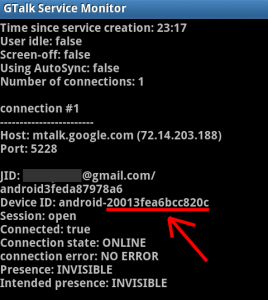
For those of you who don’t know where to get device ID of your android device
  • Dial  “*#*#8255#*#*” from your android phone
If you are using an android tablet
  • Go to Google Play Store
  • Download ‘Device ID’
Device ID

Device ID will get your device ID for you.

Getting APK of an app is simple, just locate the app you want (on Play Store) and clicking on the APK icon on your address bar will get you your precious APK for that app. Another good thing about APK package is that it makes app sharing simple, now you can share an app with your friends by simply transferring the package to their device.

APK Icon

The APK and APK Downloader will make your life a lot easier if you face problems in installing your favorite apps due to connectivity issues or if you like to share your favorite apps with your friends.

Top hackers

Top White Hat Hackers

1. Stephen Wozniak

Stephen Wozniak white hat hacker
Stephen Wozniak, The Great Woz, as many hackers call him, moreover, he is “the second half” of Steve Jobs and Apple empire, became as an icon and inspiration for many people, who never lost interest in computer technology. What did he actually do? It is well-known today that he made free long-distance calls possible exploring so-called blue boxes, at the time, when high technology has made its first baby steps. Nevertheless, one should accept that Woz is an independent developer and worked for the good of people. Currently, Stephen Wozniak is preaching charity and provides new technologies. One can truly say that Stephen Wozniak made a difference in this world and he deserves to be called as a white hat hacker.

2. Tim Berners-Lee 

Tim Berners-Lee white hat hacker
Tim Berners-Lee is well-known around the world as fonder of the web we use - World Wide Web. No wonder that this man invented his first computer using iron, as they say necessity is the mother of invention. Doubtless, his innovating had led him to becoming a president of the Open Data Institute in 2012.

3. Linus  Torvals 

Linus Torvals white hat hacker
Linus Torvals created Linux operation system, which many of us use. At the beginning, this system was about to be called as Freax, using the combination of words “ freak” and “free”. Luckily, nowadays we know it as Linux. As Linus himself once said that all he wanted to have fun doing something he really enjoys. This seems to confirm the idea that it is the great result of having fun!

4. Tsutomu Shimomura 

Tsutomu Shimomura  white hat hacker
Tsutomu Shimomura is also a very goodexample of a white hat hacker. The bottom line is he tracked down another hacker –Kevin Mitnick, who actually was a black hathacker. However, later on he has entered the ranks of white hats. Tsutomu Shimomura caught Mitnick with flying colors hacking Mitnick’s phone. Good job catching “black knight”. Currently Shimomura is CEO and CTO of Neofocal System.

5. Richard Matthew Stallman 

Richard Matthew Stallman white hat hacker
Richard Matthew Stallman is known also by his initials – RMS. His policy is to give users freedom of usage software as well as education, freedom of voice and choice. He has developed Free software foundation, GNU project, which allows use computer and its devices for free
What is more, RMS is a founder of copyright concept. Among the list if his merits are 14 doctorates and professorships.

6. Johanna Rutkowska.

Johanna Rutkowska white hat hacker
When it goes about technology and computers, most of the time we mentioned men. Women weren’t pathfinders in this area, however, they have done enough to be mentioned among outstanding white hats. Thus, this smart lady could hide root kits in software and hardware and to make them invisible to a naked eye. One must admit the talent of he woman. To draw the conclusion, one can say that enumerated people have brought its own contribution in foundation and innovation of computer technologies. Until the world has such brainy “white knights”, its save.

How to learn programming languages online

Top 6 Websites To Learn Computer Programming Language

1. W3schools.com

If you are a beginner or intermediate programmer, then w3schools is an excellent website for learning programming. W3schools offer tutorials for a variety of web programming and scripting languages such as html, html5, css, asp, Ajax, JavaScript, php, jQuery etc. So, if you are into web development then w3schools would be a great learning resource.
Learn Computer Programming

2. Codeavengers.com:

If you want learn coding for making games, apps or websites using html/html5, css3, JavaScript python, but want an entertaining teaching resource. Then codeavengers.com is ideal choice for you. Codeavengers.com was designed by keeping difficulty for beginners in mind. It provides a fun and interactive learning environment that is effective for all age groups. Even if you are an intermediate programmer, you might find some great learning stuff there.

Learn Computer Programming 

3. Codecademy.com

Codeacademy is another great website, for learning languages like JavaScript, HTML/CSS, PHP, Python, and Ruby. You can even learn how to use some popular web APIs in your website or app. Codeacademy has a great modern learning system, which is based on user interaction. It has full-fledged programming courses for beginners. Again, this website is great for beginners and intermediate learners. But advanced programmers can also find some pretty useful stuff there.

Learn Computer Programming

4. tutorialspoint.com

Tutorialspoint has tutorials for a lot of web, high level and scripting languages that are commonly used today. You can find tutorials for any computer language that you have ever heard of (those that are currently in used). Apart from that, it also features a variety of tutorials for other fields such as DIP, OS, SEO, Telecom, DBMS, and frameworks etc.  Some commonly used languages that you can learn there are: Java, C++, PHP, Python, Ruby, C#, Perl, VB.Net, ios.

Learn Computer Programming

5. msdn.microsoft.com

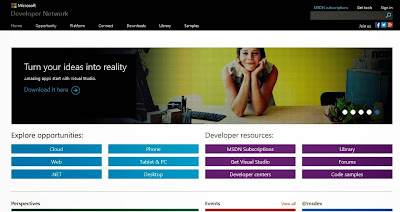
Although, beginner programmers might find MSDN (Microsoft Developer Network) a toughlearning resource, it is still the best resource you can get, if you want to master Microsoft oriented languages such as VB.Net, C# etc. MSDN has great tutorials for beginners, intermediate and advance programmers.
Learn Computer Programming

But as I stated earlier, beginners might not be initially comfortable with MDSN, as I has really a lot of resources that it would be a hard time for beginners to find what they are looking for. But if you get used to MSDN, then it is the ideal learning point for Microsoftoriented languages. You can get a lot of sample applications, tutorials and resources that are uploaded by Microsoft and MSDN community. Since it’s a developer’s network, you can even find development help from community members.

6. Lynda.com

You might already know about Lynda.com. Lynda offers easy to follow video tutorials. Lynda.com is an old and well established tutoring site, if you are looking for video tutorials to learn computer languages, then Lynda is your ideal choice. Apart from programming languages, Lynda also offers tutorials for a variety of other fields such as3D modeling, CAD, Photography etc. Lynda.com is an old and well established tutoring site.

Learn Computer Programming

So the next time someone asks you about your computer skills, you know where to turn. I hope you will learn a lot from these websites. All the best :)

Monday, January 20, 2014

FREE INTERNET DOWNLOAD MANAGER (IDM) SERIAL NUMBERS

IDM 6 SERIAL NUMBERS
S/N: 7G7QY-NZWKQ-23KRA-RAMQ4
S/N: SPOZ9-2E9IO-AKDRY-LIKEU

IDM 5.14 SERIAL NUMBERS
S/N: ZFX1T-5VOMY-ZIT4Y-FHFPD
IDM 5.14.1.0 SERIAL NUMBERS
S/N: Y30OZ-DNQH7-FRWPW-YYZMA
IDM 5.15.6 SERIAL NUMBERS
S/N: Y5LUM-NFE0Q-GJR2L-5B86I
S/N: 4BTJF-DYNIL-LD8CN-MM8X5
S/N: XAGZU-SJ0FO-BDLTK-B3C3V
IDM 5.17.3 SERIAL NUMBERS
S/N: RLDGN-OV9WU-5W589-6VZH1
S/N: HUDWE-UO689-6D27B-YM28M
S/N: UK3DV-E0MNW-MLQYX-GENA1
S/N: 398ND-QNAGY-CMMZU-ZPI39
S/N: GZLJY-X50S3-0S20D-NFRF9
S/N: W3J5U-8U66N-D0B9M-54SLM
S/N: EC0Q6-QN7UH-5S3JB-YZMEK
S/N: UVQW0-X54FE-QW35Q-SNZF5
S/N: FJJTJ-J0FLF-QCVBK-A287M

Sunday, January 5, 2014

Add Facebook Popup Widget To Blogger

Add The Below Code in your blogger template

steps to follow


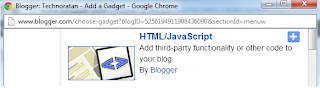
Add Widget


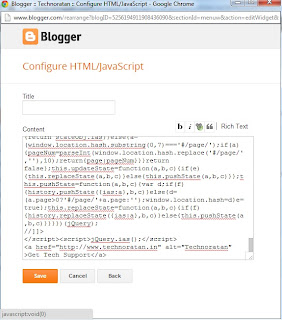
edit ; HTML/JAVA SCRIPT

Copy the Below Javascript into the Content Box


<script src='http://ajax.googleapis.com/ajax/libs/jquery/1.7.2/jquery.min.js' type='text/javascript'></script>
<style>
#fanback {
display:none;
background:rgba(0,0,0,0.8);
width:100%;
height:100%;
position:fixed;
top:0;
left:0;
z-index:99999;
}
#fan-exit {
width:100%;
height:100%;
}
#fanbox {
background:white;
width:420px;
height:270px;
position:absolute;
top:58%;
left:63%;
margin:-220px 0 0 -375px;
-webkit-box-shadow: inset 0 0 50px 0 #939393;
-moz-box-shadow: inset 0 0 50px 0 #939393;
box-shadow: inset 0 0 50px 0 #939393;
-webkit-border-radius: 5px;
-moz-border-radius: 5px;
border-radius: 5px;
margin: -220px 0 0 -375px;
}
#fanclose {
float:right;
cursor:pointer;
background:url(https://blogger.googleusercontent.com/img/b/R29vZ2xl/AVvXsEiSAXjA-LKXbLSTnm-Z6SB2Yl42_uqFtXJLHL3-TUfOYXIT1afYokFjEywt0RF0KZdrWFnDOGyCDvRiEH-v9yPnWjSynB_1op5cWlviNMEi9ShyfieYKFClvfqo08nsO-vj4_IcmrX9dHpU/s1600/fanclose.png) repeat;
height:15px;
padding:20px;
position:relative;
padding-right:40px;
margin-top:-20px;
margin-right:-22px;
}
.remove-borda {
height:1px;
width:366px;
margin:0 auto;
background:#F3F3F3;
margin-top:16px;
position:relative;
margin-left:20px;
}
#linkit a.visited,#linkit a,#linkit a:hover {
color:#80808B;
font-size:10px;
margin: 0 auto 5px auto;
float:center;
}
</style>


<script type='text/javascript'>
//<![CDATA[
jQuery.cookie = function (key, value, options) {
// key and at least value given, set cookie...
if (arguments.length > 1 && String(value) !== "[object Object]") {
options = jQuery.extend({}, options);
if (value === null || value === undefined) {
options.expires = -1;
}
if (typeof options.expires === 'number') {
var days = options.expires, t = options.expires = new Date();
t.setDate(t.getDate() + days);
}
value = String(value);
return (document.cookie = [
encodeURIComponent(key), '=',
options.raw ? value : encodeURIComponent(value),
options.expires ? '; expires=' + options.expires.toUTCString() : '', // use expires attribute, max-age is not supported by IE
options.path ? '; path=' + options.path : '',
options.domain ? '; domain=' + options.domain : '',
options.secure ? '; secure' : ''
].join(''));
}
// key and possibly options given, get cookie...
options = value || {};
var result, decode = options.raw ? function (s) { return s; } : decodeURIComponent;
return (result = new RegExp('(?:^|; )' + encodeURIComponent(key) + '=([^;]*)').exec(document.cookie)) ? decode(result[1]) : null;
};
//]]>
</script>
<script type='text/javascript'>
jQuery(document).ready(function($){
if($.cookie('popup_user_login') != 'yes'){
$('#fanback').delay(100).fadeIn('medium');
$('#fanclose, #fan-exit').click(function(){
$('#fanback').stop().fadeOut('medium');
});
}
$.cookie('popup_user_login', 'yes', { path: '/', expires: 7 });
});
</script>
<div id='fanback'>
<div id='fan-exit'>
</div>
<div id='fanbox'>
<div id='fanclose'>
</div>
<div class='remove-borda'>
</div>
<iframe allowtransparency='true' frameborder='0' scrolling='no' src='//www.facebook.com/plugins/likebox.php?
href=http://www.facebook.com/4geeksworld.blogspot.in=402&height=255&colorscheme=light&show_faces=true&show_border=false&stream=false&header=false'
style='border: none; overflow: hidden; margin-top: -19px; width: 402px; height: 230px;'></iframe><center>
<span id="linkit"><a href="http://4geeksworld.blogspot.in/2014/01/add-facebook-popup-widget-to-blogger.html">Facebook Popup Widget</a></span></center>

</div>

</div>


-------------------------

Customize It


Replace facebook.com/4geeksworld.blogspot.in with your facebook username


If you want the Popup to appear every time the User Reloads or access the website


Delete the below code

$.cookie('popup_user_login', 'yes', { path: '/', expires: 7 });


THANK you, DON'T miss COMMENT


Friday, January 3, 2014

Control Your Computer Anywhere,Away From Home using Remote Assistance Host


Instructions

  1. Remote Assistance Host


  • 1
    Create an invitation from the host -- the computer you want to control remotely. Click “Start” and “Control Panel.” Type “Remote Settings” in the search bar and press “Enter.” Click “Allow Remote Access to Your Computer.” Ensure that there is a check in the box, and then click “Advanced.”


  • 2
    Choose the length of time for the invitation to stay open, up to 30 days. Click “OK,” and then click “OK” again.
    • 3
      Click “Start” and type “Remote Assistance,” and then press “Enter.”
    • 4
      Click “Invite Someone You Trust to Help You.” Save the invitation as a file and attach it to an email if you use a Web-based client, or use Outlook to automatically attach it.
    • 5
      Email the invitation to an account that you can access from your remote location. The attachment automates the connection process; if you don’t receive the email, you can't control the host computer.
    • 6
      Change your host computer's hibernation and sleep settings, if applicable, via the Control Panel, in Hardware and Sound, under Power Options. If the host computer is hibernating or sleeping when the Remote Assistance request comes from the remote computer, you won’t be able to connect.

    Remote Assistance Connection

    • 7
      Launch your email program or website on the remote computer. Open the email you sent to yourself and the attachment with the invitation. Windows then will automatically launch its Remote Desktop Connection software.
    • 8
      Connect to the host computer and perform your desired tasks. Enter your administrator password to allow changes to your system and to gain access through your computer’s firewall, if needed.
    • 9
      Close the connection only when you've completed all desired tasks, as you won’t be able to reconnect without a new invitation from the host computer. Reconnect using the same process if you accidentally lose the connection on your end; if the connection is lost on the host end, you can't re-establish it.

  • Thursday, January 2, 2014

    Ways to Improve Your Wireless Router

    who has experienced seemingly random disconnections while trying to surf the Web, stream movies or play online games understands the frustrations that come from poor wireless signal strength. 
    Fortunately, you don’t have to run out and buy a brand-new router just yet. 
    Here are some ways you can improve your router’s performance for almost free.

    1. Position Your Router in an Open Space

    Just like Superman’s X-ray vision, wireless signals have a difficult time penetrating metal and other dense objects. Obstructions such as metal filing cabinets, pipes and walls can limit your wireless connection, and the more obstructions between your router and computer, the more severe the interference.
    Place the router in the open away from interfering objects to maximize signal strength. Similarly, placing your router in a corner of your house (or worse, in the basement) can reduce its range and capacity, as the signal loses efficacy every time it passes through an obstruction. Keeping the router in a central location can significantly improve your Wi-Fi’s performance.

    2. Change your Wireless Channel

    Wireless routers use specific channels (one of 11) to send and receive data. The more routers operating on a certain channel, the slower all their connections will be. You can use a free tool such as inSSIDer (www.metageek.net/products/inssider) to scan for nearby Wi-Fi networks and detect which wireless channel they’re using, then switch to a channel that’s more open.
    If the majority of surrounding routers are using channel 1, for instance, those people will suffer from limited range and power. Switching your wireless channel is easy enough — just read the documentation that came with your router to find the IP address for its configuration page (or type “ipconfig” into a command line, and find the address listed for Default Gateway). Then type that address into your browser’s address bar. You can change your wireless channel from there.

    3. Update your Router’s Firmware

    Like any piece of hardware, your router can eventually fall out of date. Router manufacturers routinely roll out new firmware for their products, which fixes bugs and increases performance and reliability. Unfortunately, wireless routers don’t often inform users that an update for their firmware is available.
    The good news is that downloading and applying the update is a fairly simple process. First, look on the back of your router to find the model and version numbers. With those in hand, go to the manufacturer’s website to find the latest firmware for your router. After you’ve downloaded the file, install it by opening the router’s configuration page (described in the previous tip), opening the tab for Firmware Upgrade and choosing the downloaded file as the source. Let the upgrade process complete before clicking on any other link on the router configuration page.

    4. Update your Wireless Adapter Drivers

    Like your router, your wireless adapter also receives periodic updates, some of which can boost your Wi-Fi performance. To get the latest drivers, you’ll need to find out which manufacturer the adapter comes from. Head to Device Manager in the Control Panel; once there, expand Network Adapters to find your adapter’s model and make. Next, go to the manufacturer’s website and download the latest drivers for your device.
    If the file is an executable (i.e., a “.exe” file), just run the program. Otherwise, head back to Device Manager and double-click the name of the wireless adapter. Once there, click the Driver tab and select Update Driver. Finally, select “Browse my computer for driver software” and select the file you downloaded from the manufacturer.

    5. Replace your Router’s Antenna

    Although most new routers feature internal antennas — which are difficult to modify or replace — some still use external antennas. These antennas are typically omnidirectional to ensure that the signal reaches every part of your home equally. However, if your router is positioned near an outside wall or in the corner of your home — and you can’t move it — half or more of the signal will be lost as the antenna beams data into the wall.
    Installing a high-gain antenna can maximize your router’s signal strength, as it allows you to aim the wireless signal in a single direction. On the other hand, if an omnidirectional antenna works best for you (for instance, if your router is placed in the center of your home), consider purchasing a longer antenna, as these generally boast better performance. The documentation that came with your router should provide specific instructions on how to replace the antenna.
    Fortunately, replacement antennas aren’t expensive. For example, a high-gain antenna for a Linksys WRT54GL Wireless-G Broadband Router — one of the most popular routers on Amazon.com — costs about $8 via the online retailer.

    6. Add a Wireless Repeater

    You can use a wireless repeater to extend the range of your wireless router without moving the router itself or installing any extra wiring. The repeater’s name implies how it works — it just identifies the signal being transmitted by the router and “repeats” the signal at its location at full strength.
    Some of the signal integrity gets lost when the repeater rebroadcasts the signal, making a wireless repeater less optimal than a wired repeater if signal integrity is your primary concern. On the other hand, using a wireless repeater obviates the need for extra wiring, making it much more convenient.
    Wireless repeaters range in price from about $25 to as much as several hundred dollars. The popular Amped Wireless-N Smart Repeater and Range Extender will run you $119.
    To set up your wireless repeater, follow these steps:
    1. First, access the device’s system menu (as described in the manual).
    2. Ensure that the repeater and the router use the same SSID (your wireless network’s name and password).
    3. Give your repeater the same MAC address as the router.
    4. To find out your router’s MAC address, open the command prompt in Windows and type “ipconfig /all.” The MAC address will be listed next to the heading Physical Address.
    5. Finally, place the repeater halfway between your router and your computer, and check to see if it’s receiving a WLAN signal.

     7. Using DD-WRT 

    This tip is recommended only for advanced users. You can download DD-WRT, a free piece of Linux-based firmware designed to improve signal strength and add new features to your router (such as the ability to selectively throttle the bandwidth of specific programs). More and more routers are supported by DD-WRT, so it’s likely that if you’re using a router from one of the major vendors, you’ll be able to install the software.
    Note that installing DD-WRT can void your warranty and is exceedingly difficult to remove once installed. The installation can also be somewhat laborious, and — if you’re not careful — can result in “bricking” your router if an error occurs while flashing the firmware. The installation process is too detailed to explain here, but, thankfully, the developer maintains a wiki (www.dd-wrt.com/wiki) that includes a step-by-step guide to installing DD-WRT, as well as instructions on how to recover your router should it become bricked.
    (from other sources)
    thank you
     

    Monday, May 21, 2012

    Send and Receive WhatsApp Messages on Windows PC

    WhatsApp is popular free messaging client which is available for iOS, Android, Nokia and Blackberry, but still we have no client for Windows PC officially released by the WhatsApp team. Well you can imagine having WhatsApp on your PC and how fast you will be able to send and receive text messages as you always be on one device so you can handle everything right there. So we found an unofficial client which is supposed to be a dummy version of Android running on your PC.

    BlueStacks App Player Android Emulator :

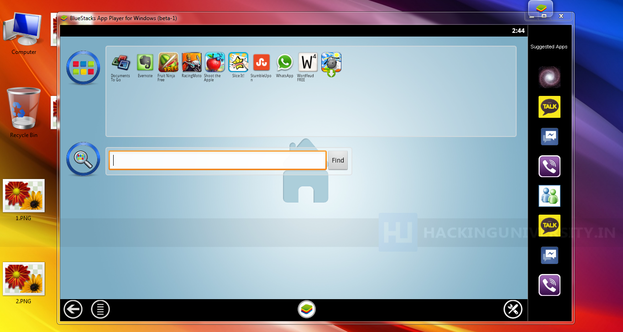
    BlueStacks App Player helps you install WhatsApp and thousands other application because its an Android operating system running on your Windows PC. Now obviously its not like you will get that same kind of experience you can do with a touch phone and Android installed on it but still if you are a WhatsApp fan than I must that this software is must for you because WhatsApp experience on this one is simply unbelievable faster texting and media exchanging.
    bluestacks-app-player-windows

    Steps to Install WhatsApp on BlueStacks App Player :

    So if you are interested in using WhatsApp right on your PC that you can grab some installation knowledge from below and start experiencing right now.
    1. Download BlueStacks App Player for Windows PC.
    2. After you have downloaded the above software, start installing it and it will start downloading its package from the internet, it will take some time so sit back and have a cup of coffee.
    3. So after downloading it will install and now you will see their user interface, now you have to sign up for your new account or if you already have their account than you can login.
    bluestacks-whatsapp-messenger
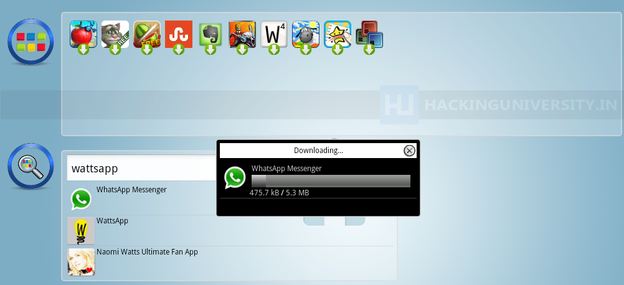
    4. Now just search for the WhatsApp like in the above image or find it from the popular downloads hovering right above in the Rocket Dock, after you find it click on it and it will start downloading the app.
    5. After WhatsApp is installed click on it and you will see a Terms and Conditions page where you have to click on Agree and than you will be on their main phone verification page.
    bluestacks-whatsapp-verification
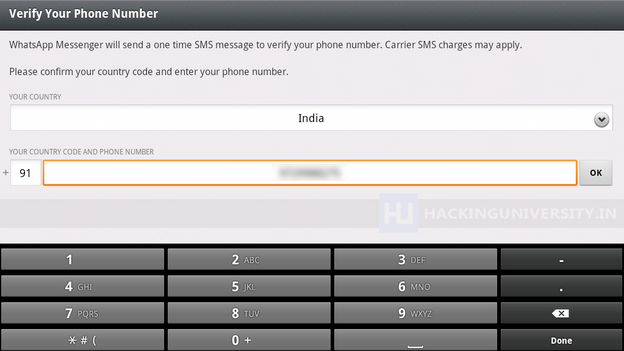
    6. Now just select your country and than insert your mobile number and than click on OK.
    bluestacks-whatsapp-verification
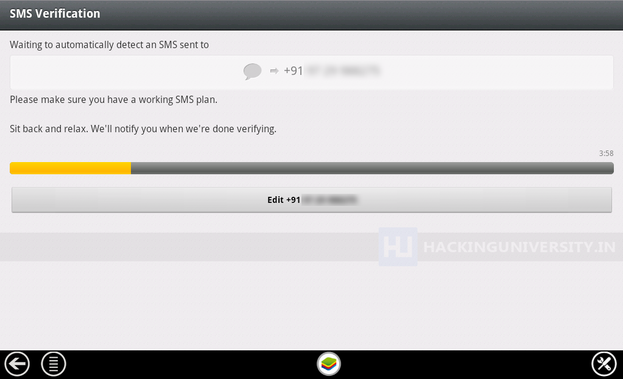
    7. Now it will start the process of sending you the verification message on your mobile, if that thing fails you also have an option to call your number for the verification message. So now just insert that code and click on OK boom you have successfully activated your WhatsApp messenger on your Windows PC.
    bluestacks-whatsapp-messages
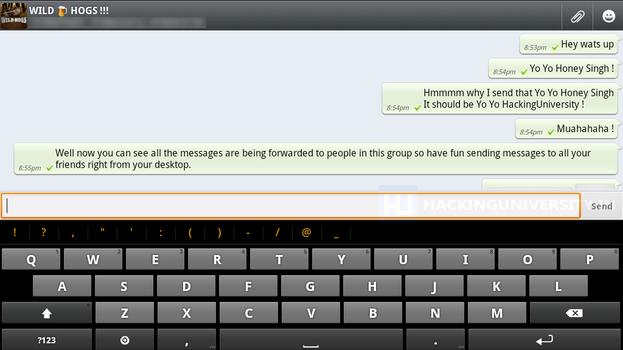
    8. So now WhatsApp is ready for some action, select your already created groups, if you were having one on your mobile or you can start sending text or media messages to your friends and create another new group, so I was just messing around my group Wild Hogs, and tried sending some messages and delivery was amazingly fast and responsive.
    So now enjoy WhatsApp on your Windows PC with this amazing BlueStacks App Player, well you can also download and install other amazing Android Application which you can search and than download, hope you liked this lengthy tutorial, please share it with all your friends.(from other sources)

    Download link-http://www.bluestacks.com/

    How to Install Paid Android Applications For Free

    Update : Many people commented that they see blank screen while using Applanet app, well I think so that will be fixed soon or else you can use BlackMart Alpha app for Android device which is similar to the Applanet app but works somewhat fine.
    applanet app androidAndroid is one of the best OS available right now as its is owned and developed by Google. Now all the latest phones comes with this new OS preinstalled in them and its really awesome. You have many apps and games which you can play on your smart phone but the thing is that many good ones are paid, so to get those paid ones you have to link your debit card than pay them and than you can enjoy those games or you can simply install a simple app with which you can download those apps for free of cost.
    Applanet is that small awesome application for Android devices with which you can download any apps or games those are paid for free. It is somewhat same like Installous app we have for iPhone which we install using Cydia.

    How Applanet Works :

    Applanet is a simple app for Android which simply provides with the paid apps and games for free which you can download right on phone. You simply download and install this app and than search - download - install any application from it for free. Its totally free of charge and simply takes few minutes to install.

    How to Download & Use Applanet :

    Now if you also want to install paid apps and games for free on your android device than simply Download Applanet App for your android phone and than copy it to your phone, now navigate to it through file manager or anything and click on it to install it.
    Now simply navigate to this app from your application menu and fire it up, enjoy searching and downloading apps on the go. If you find this difficult and cannot make it up with it than comment below with your problem and hopefully I will solve it for you.